

Folders
Part of step 4.
How the tree is organised
Section titled “How the tree is organised”Every case starts with the same 22 numbered categories. They are fixed. The inventory you produce is expected to follow this shape.
| 1. Court Documents | 8. Stocks, Bonds & Other Marketable Investments | 15. Loans & Notes Payable |
| 2. Financial Affidavit | 9. Retirement | 16. Other Liabilities |
| 3. Tax Returns & IRS Correspondence | 10. Real Estate | 17. Trusts |
| 4. Income | 11. Automobiles, Boats & Other Vehicles | 18. Related Entities |
| 5. Expenditures | 12. Insurance | 19. Contingent Assets |
| 6. Cash and Equivalents | 13. Other Assets | 20. Contingent Liabilities |
| 7. Loans & Notes Receivable | 14. Charge & Credit Card Accounts | 21. Personal Documents |
| 22. Personal Financial Statements |
Inside a category, Ordernize creates a folder per account, entity, property or vehicle — Harborline Bank, N.A. ····4471 checking, 2022 Toyota Highlander XLE. That is the level documents actually live at.
Two folders sit outside the numbering:
- All Documents — everything, flat. The best place to search.
_UNSORTED -- Needs Review— nothing could be worked out; needs you.
Categories with nothing in them are marked -- EMPTY and stay visible, so an empty category reads as nothing was produced for this rather than this does not exist.
Adding a folder
Section titled “Adding a folder”Sometimes you know an account exists before its documents arrive, or you want somewhere specific to file something.
- Click New folder (top right of the Inventory tab), or the + on a category row to add inside that category.
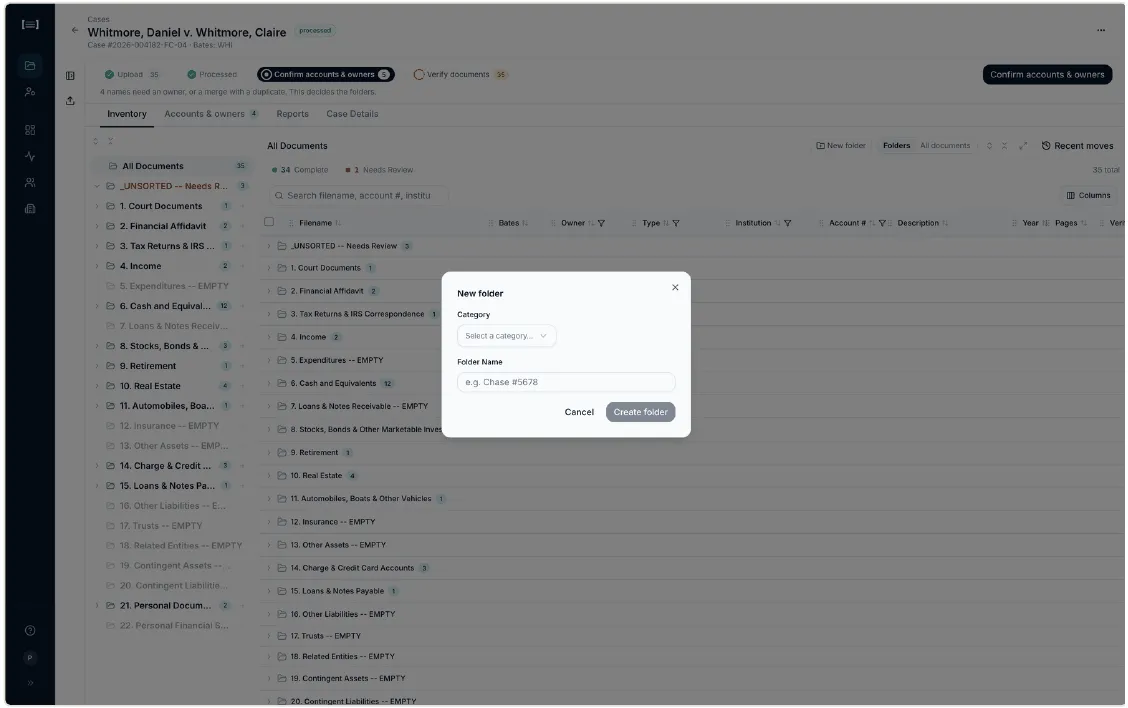
- Choose the Category — which of the 22 it belongs under.
- Say who it belongs to. Once a category is chosen, an owner field appears: a party, Joint, or a named entity. Naming a new entity here also adds it to Accounts & owners, so you will be asked to classify it.
- Give it a Folder Name. The placeholder shows the expected shape, e.g.
Chase #5678. - Create folder, then drag documents into it.
Moving a whole folder
Section titled “Moving a whole folder”Drag the folder itself. Everything in it goes along. Useful when an entire account is filed under the wrong category.
Other controls
Section titled “Other controls”- Expand all / Collapse all — the two arrow icons above the tree
- Folders / All documents — switch the right-hand pane between one folder’s contents and everything
- Full screen — for wide tables
- Columns — choose which columns show, and in what order
What good looks like
Section titled “What good looks like”- Every account you expect has one folder, not two. If it has two, merge.
_UNSORTED -- Needs Reviewis empty.- Categories marked
-- EMPTYare ones you genuinely received nothing for.
Next: Accounts & owners