

Maintaining names
Part of step 3. The row menu on Accounts & owners, and the entries under More.
What this is for
Section titled “What this is for”Classifying and merging cover most of this step. These are the rest: fixing a name that was read wrong, removing one that should not be there, adding one Ordernize never found, and grouping subsidiaries under a parent.
Where these live
Section titled “Where these live”Two places, and it is worth knowing which is which.
- The row menu holds the corrections that apply to one specific name: Rename, This is actually…, Delete…. Its button sits at the right-hand end of the row and is labelled More actions for the name. It is on every row, in the Names queue and in the browse views alike.
- More, in the header beside Continue, holds everything that is not a single row: Completed names, All names, Recently deleted, Add name, Merge names manually, Linked accounts. Each opens a sub-view with a Back button.
To reach a name you have already decided, or one that never enters the Names queue at all, go More → All names. Institutions, properties and vehicles only appear there.
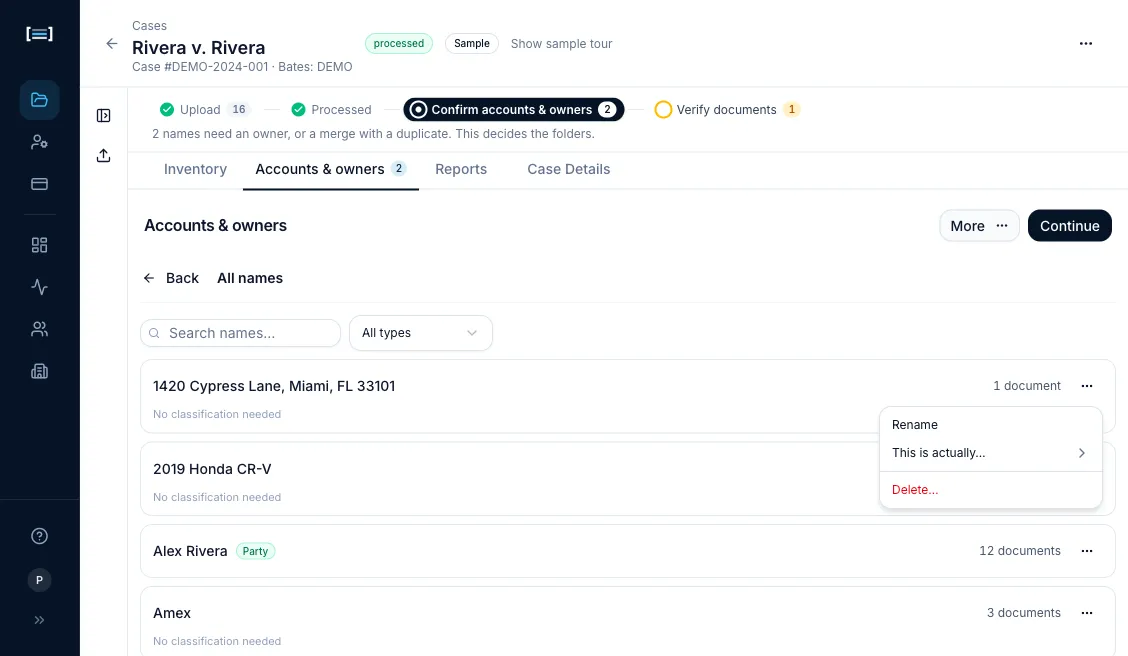
Rename
Section titled “Rename”For when the name is right but the spelling is wrong: a typo from a poor scan, an all-caps masthead, a truncated company name.
Row menu → Rename, type the correct name, press Enter. Every document carrying that name is updated. Double-clicking the name does the same thing.
Rename fixes one name’s spelling. If two separate names should become one, that is a merge.
Delete, and the reassign option
Section titled “Delete, and the reassign option”For names that are not real: a fax header read as an account holder, a form label picked up as a party. A name called File, lifted from a cover sheet reading “TO: File”, is exactly this.
Ordernize flags the ones it recognises. Those rows say so in the Names queue and lead with Delete… instead of a type, with Classify instead beside it for when the flag is wrong.
Row menu → Delete…. The dialog tells you how many documents are affected and offers two outcomes:
- Return the documents to the review queue (default). The name is stripped and each document goes back to Needs Review for you to re-attribute.
- Reassign to another name. The documents adopt a name you choose instead. This is a merge under the hood, so the same “cannot be undone” caution applies.
Deleting a name does not delete documents.
This is actually… (changing the kind of thing)
Section titled “This is actually… (changing the kind of thing)”For when the name is real but Ordernize filed it in the wrong role: a bank read as an account owner rather than an institution, say.
Row menu → This is actually…, then pick the correct kind from the submenu. Marking something an institution also stops it being re-introduced as an owner if the document is processed again later.
This is not the same as classifying. Classifying says what role a name plays in the case; this says what kind of thing it is.
Add a name
Section titled “Add a name”For entities you know about that no document names cleanly: an entity you expect production for, or one that only appears in a document Ordernize could not read.
More → Add name, type it, choose whether it is an owner or an institution, and give it a classification.
Nesting under a parent
Section titled “Nesting under a parent”Where a related entity is owned by another related entity, set the parent so the folder tree reflects the actual structure.
The first time you classify a name as Related Entity the row asks for this straight away: an Owned by picker opens underneath, and the row is not finished until you Save. Leave it at the top level if it has no parent.
Afterwards the ownership stays on the row as an Owned by line you can change without redoing the classification.
Recently deleted
Section titled “Recently deleted”More → Recently deleted lists names you have removed, and restores them: your check on an over-enthusiastic cleanup. The entry only appears in the menu once you have deleted something, and carries a count when it does.
Next: Case details · Exporting