

Verifying documents
Step 4 of 4.
What this is for
Section titled “What this is for”Checking what Ordernize read against what the document actually says, and correcting it where it is wrong. The extracted fields become your Inventory of Documents, so an error here is an error in the deliverable.
- On the Inventory tab, click a document row. The document panel opens: the PDF on the left, everything Ordernize extracted on the right.
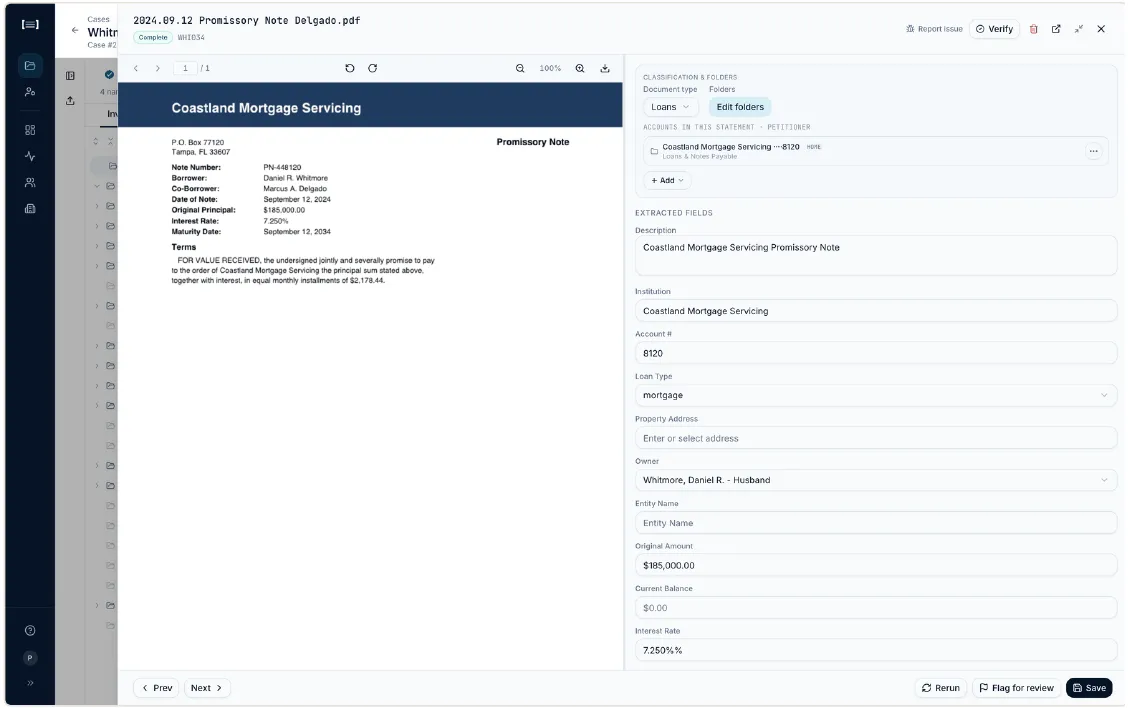
- Read the fields against the document.
- Classification & Folders — the document type, and which folders it is filed in. The HOME tag marks its primary folder.
- Extracted fields — Description, Institution, Account #, Owner, Document Type, Period Start and End, As Of Date, Ending Balance. Which fields appear depends on the document type.
- Notes — free text for anything you want recorded against the document.
- Correct anything wrong by typing in the field, then click Save.
- Click Verify when the document is right. This is your sign-off. The Verified column in the table then shows who verified it and when.
- Use Next at the bottom to walk straight to the following document without going back to the list.
Working the Needs Review queue
Section titled “Working the Needs Review queue”Filter to Needs Review documents using the Status column filter, or open the _UNSORTED -- Needs Review folder.
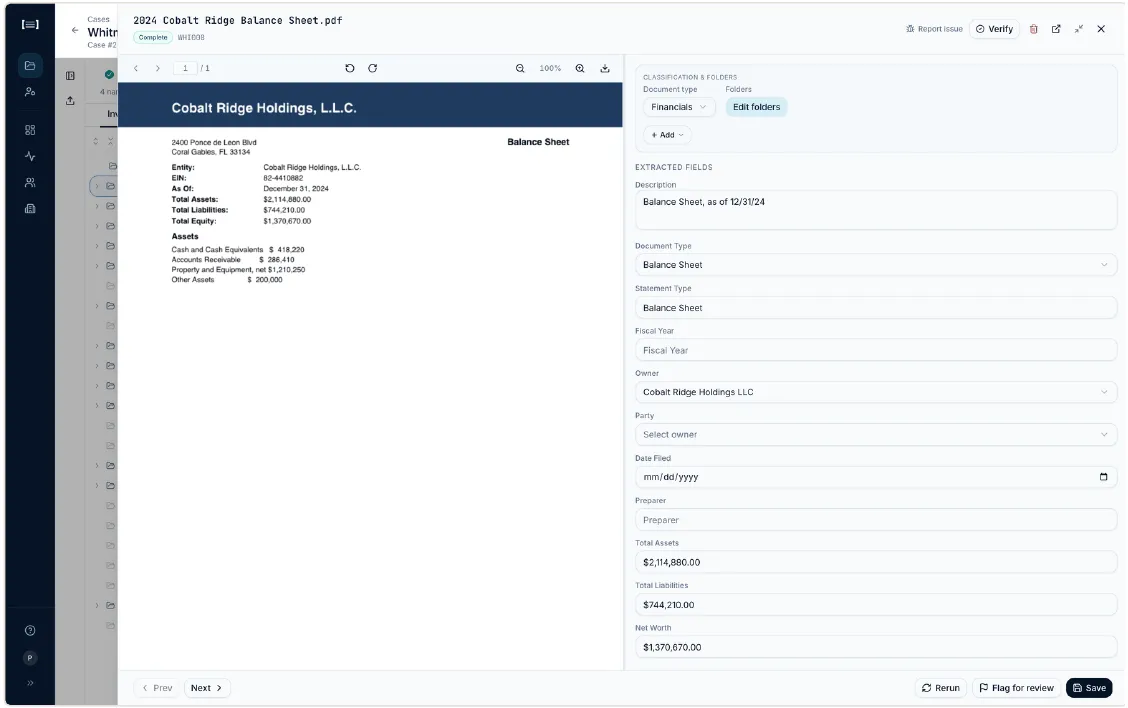
A document sits here most often because Ordernize could not write a description for it. It did not find the fields that a description needs. Supply the missing information, or type the description yourself, and saving moves it on.
If it genuinely is not a case document (a fax cover sheet, a blank separator page), delete it rather than forcing a description onto it.
Other controls in the panel
Section titled “Other controls in the panel”- Retry — have Ordernize read the document again. Use when processing failed.
- Rerun / Replace extraction — destructive, and only visible to Ordernize administrators. It throws away the current extraction and reads the stored file again. In the product’s own words it “deletes everything you’ve changed by hand”: manual edits to descriptions and account fields, sections you added along with their issues and folder placements, the Bates number and the verification record. It does not re-read a different file. “The PDF itself is unchanged. This cannot be undone.” Never use it to bring in a better copy of a document.
- Flag for review — mark it for a colleague.
- Report issue — send the document to Ordernize support when it looks like a product problem.
- Edit folders — change where it is filed without leaving the panel; the alternative to dragging.
What good looks like
Section titled “What good looks like”- Every document that matters is Verified.
- Descriptions read like the ones you would have written: “Statements for the period 01/01/25 – 01/31/25”.
- Institution and Account # are consistent across every statement for the same account.