

Re-filing with drag and drop
Part of step 4. Use whenever a document is in the wrong folder.
What this is for
Section titled “What this is for”Ordernize files each document automatically. Most land correctly; some do not, and some are genuinely ambiguous. An auto loan statement is both a loan and a vehicle, and only you know which folder this case needs it in.
Dragging a row onto a folder re-files it. This is the fastest way to correct filing, and it is reversible.
Not to be confused with dragging files from your computer into Ordernize, which is how you upload. See Uploading documents.
- Go to the Inventory tab. The folder tree is on the left; documents are on the right.
- Press and hold on the document row, then drag it toward the folder tree. A label follows your cursor showing what you are moving, and the row you picked up dims.
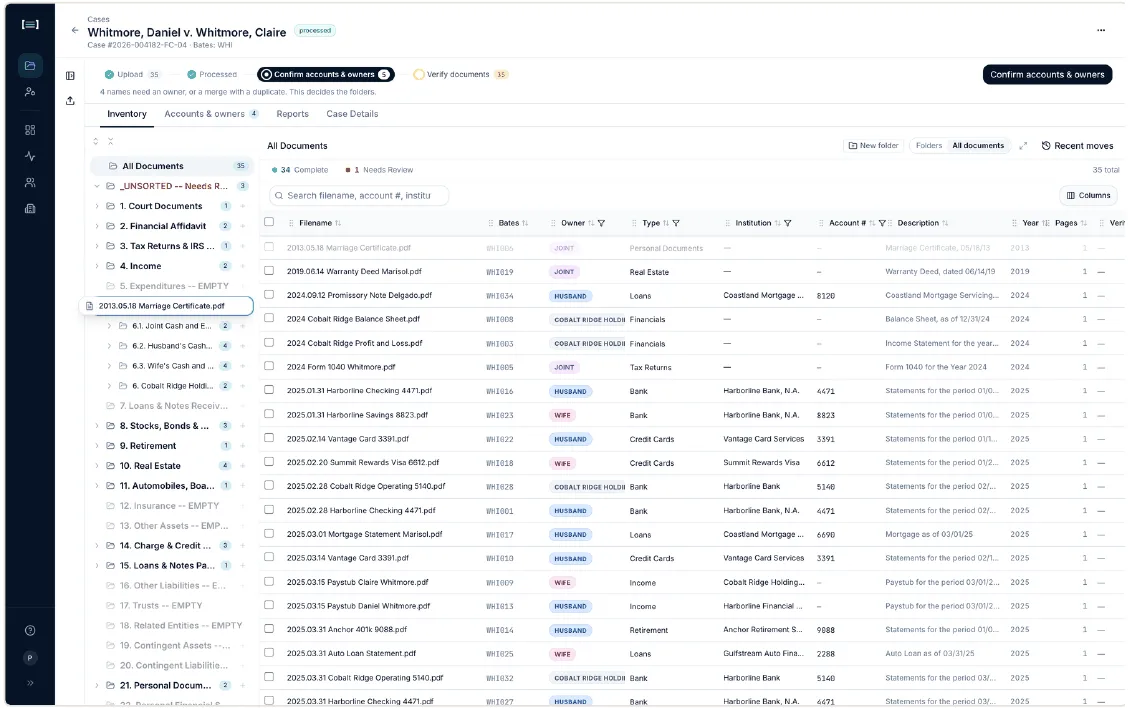
- Hover over a folder to open it. Holding over a closed folder expands it, so you can drop into a folder nested inside.
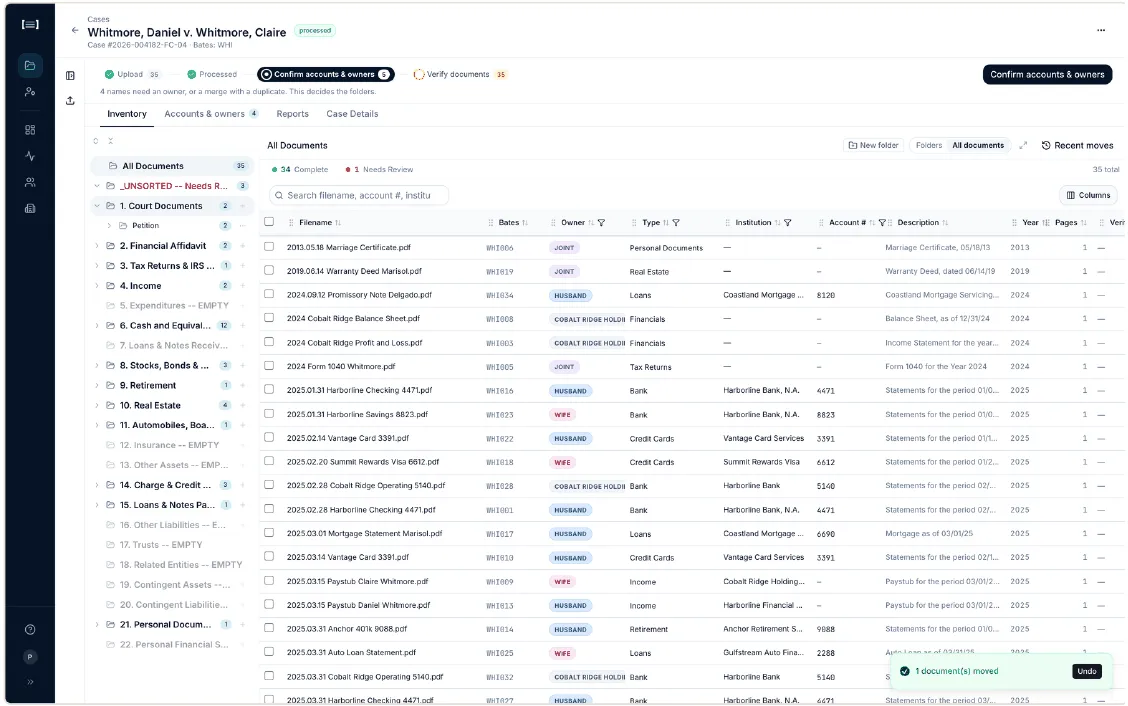
- Release over the destination. A confirmation appears bottom-right:
1 document(s) moved, with an Undo button. Undo puts it straight back.
- Select several first to move them together. Tick the checkboxes on multiple rows, then drag any one of them. The whole selection moves.
Dropping onto a category usually will not work
Section titled “Dropping onto a category usually will not work”Numbered categories like 11. Automobiles, Boats & Other Vehicles are headings, not filing destinations. Documents live in the account, entity or vehicle folders inside them. Drop onto a category and Ordernize refuses.
Hover the category for a moment, let it expand, and drop onto a folder inside it instead.
Why a drop gets refused
Section titled “Why a drop gets refused”Every refusal has a specific message. Nothing is ever moved silently, and a refused drop changes nothing.
| Message | What it means |
|---|---|
| Already in this folder | The document is already there |
| This is an “also appears in” link — move the original document | You grabbed a cross-reference, not the document. Find the original and move that |
| This folder has no documents to move | You dragged an empty folder |
| Still processing — wait for it to finish before moving | The document has not finished being read |
| Can’t file documents directly here — drop onto a folder inside it | You dropped on a category heading |
| Folders are reorganizing — try again in a moment | A rebuild is running; wait and retry |
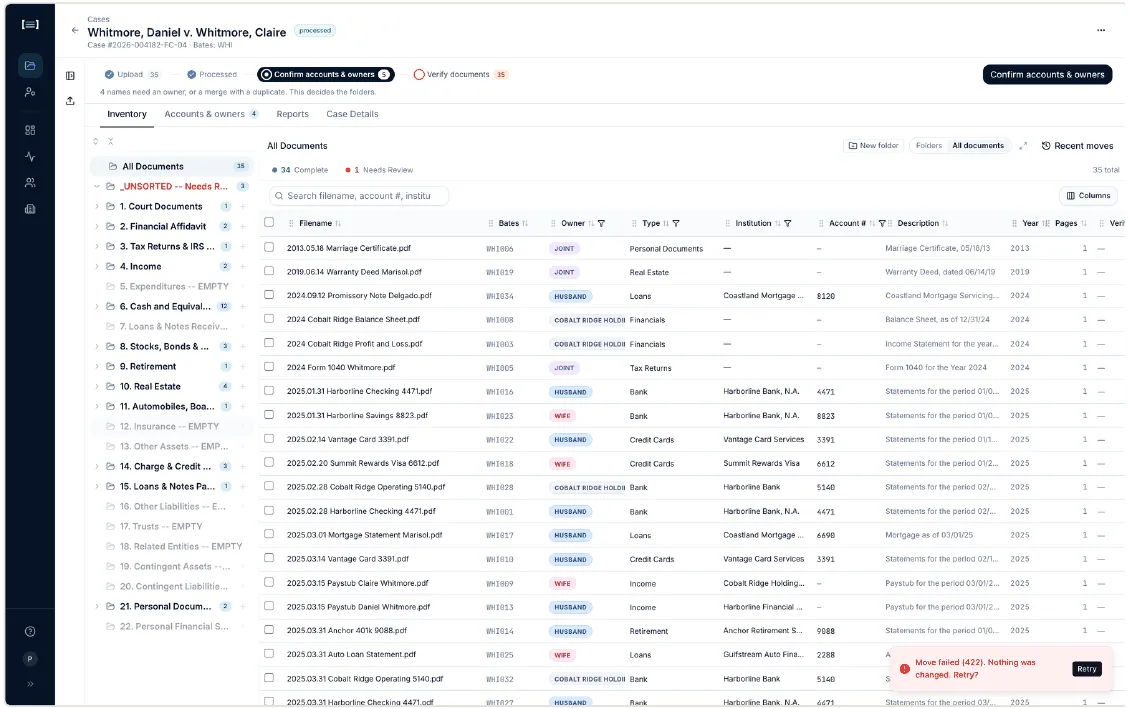
| Move failed (…). Nothing was changed. Retry? | The server rejected it. Nothing changed. Use the Retry button |
The other ways to move a document
Section titled “The other ways to move a document”Dragging is not the only route, and it is not always the easiest:
- Right-click a folder for a context menu.
- Open the document and use Edit folders in the panel. Best when you want to see the PDF while you decide.
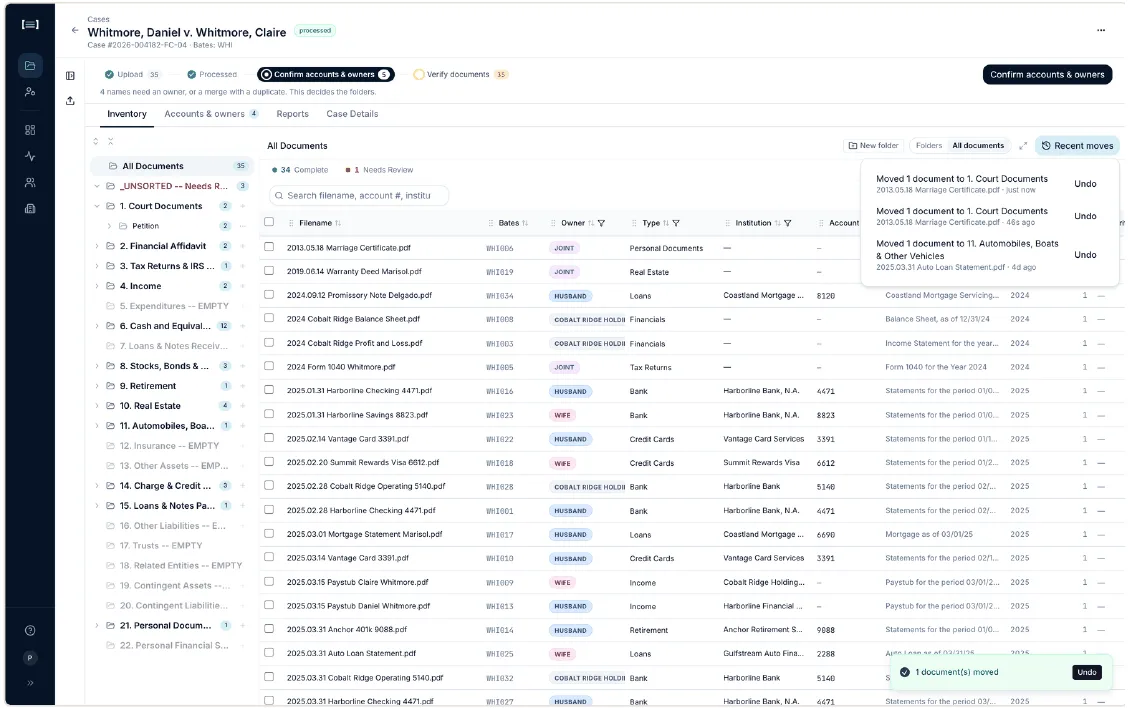
- Recent moves (top right of the Inventory tab) lists what has been moved recently, so you can review or reverse a batch after the toast has gone.
What good looks like
Section titled “What good looks like”- The document is in the folder you intended.
- The
_UNSORTED -- Needs Reviewfolder at the top of the tree is empty.
Next: Folders · Verifying documents