

Processing and retries
Step 2 of 4. Mostly waiting.
What this is for
Section titled “What this is for”Once documents are uploaded, Ordernize reads each one, works out what it is, pulls out the fields that matter, writes a description, and files it. You do not start this and you cannot speed it up, but you do need to know when it is finished and what to do about anything that did not make it.
What you will see
Section titled “What you will see”The counts on the Inventory tab update live. A few dozen documents take a couple of minutes; several hundred take longer.
Each document ends in one of three states:
| Status | Meaning | Your move |
|---|---|---|
| Complete | Read, filed and described. Not the same as checked by you. | Verify it |
| Needs Review | Read, but something needs a human. | Resolve it |
| Failed | Could not be processed. | Retry it |
Complete is a processing state, not your sign-off. It means Ordernize finished reading the document and was confident enough to file it. Whether the extracted values are right is what verifying establishes, and unverified documents still export.
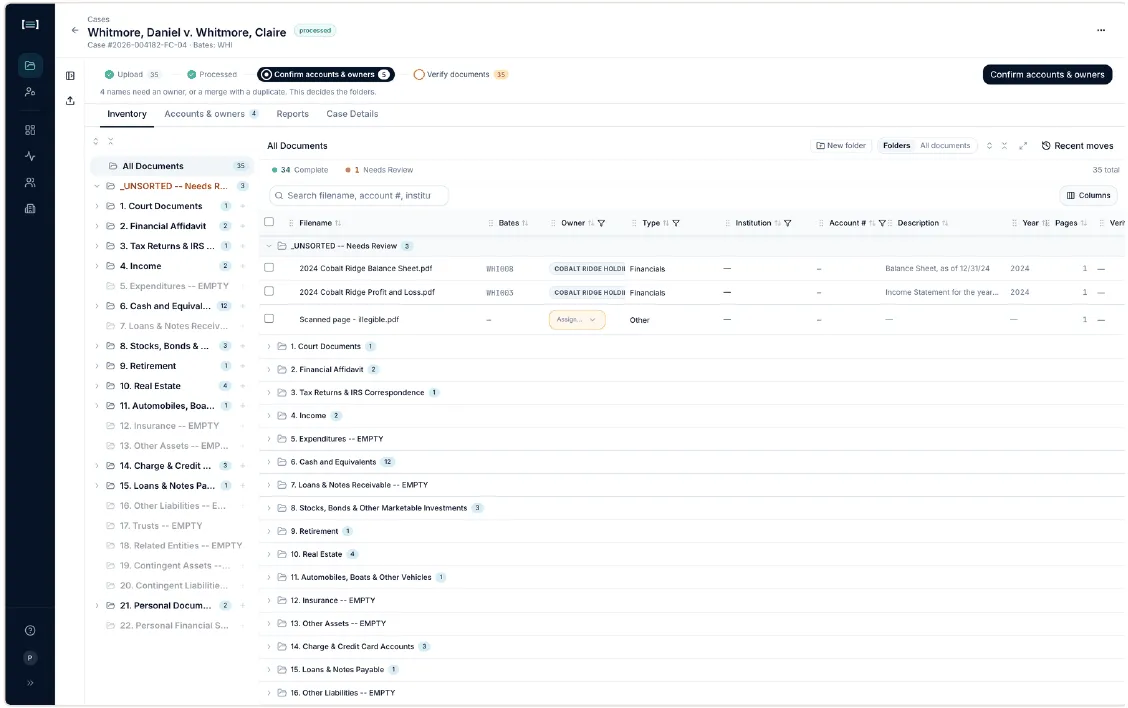
Documents that could not be filed anywhere land in _UNSORTED -- Needs Review at the top of the folder tree.
-
Wait for the case status to read processed.
-
Look at what is in
_UNSORTED -- Needs Review. Two different things land here, and they need opposite treatment:- Documents waiting on an entity decision. A document whose owner is an unclassified business or trust cannot be filed until you say what that name is. These clear themselves during Accounts & owners. Do not file them by hand first.
- Documents that are genuinely missing information. A partial scan, a page with no identifying detail. These need you. See Verifying documents.
If you are not sure which a document is, open Accounts & owners first and come back. Anything still sitting in
_UNSORTEDafterwards is the second kind. -
Retry any failures. Open the failed document and use Retry in its panel. A retry re-reads the document from scratch, including re-deciding what type it is.
The case-level ⋯ menu at the top right, with Re-extract all, is restricted to Ordernize administrators. If you have a batch of failures rather than one or two, that is a support request, not a self-service action.
-
Only then move on to confirming accounts and owners.
Confirming accounts and owners, and verifying documents, are both built on what processing found. Starting them while documents are still moving means reviewing an incomplete picture.
What good looks like
Section titled “What good looks like”- Case status: processed
- Needs Review is empty. Anything left there is missing from your reports.
_UNSORTED -- Needs Reviewempty
Next: Accounts & owners