

Merging duplicates
Part of step 3. Do this in the same sitting as classifying names.
What this is for
Section titled “What this is for”The same real-world thing often reaches you spelled more than one way, because the documents themselves are inconsistent:
- Harborline Bank on January’s statement, Harborline Bank, N.A. on February’s
- Cobalt Ridge Holdings LLC on the P&L, Cobalt Ridge Holdings, L.L.C. on the balance sheet
- 418 Marisol Ave on the mortgage statement, 418 Marisol Avenue on the tax bill
Ordernize treats each spelling as its own name, so each one gets its own folder. One account ends up split across two folders, and the Inventory of Documents shows it twice.
Merging folds the spellings together into one surviving name and re-files every affected document under it. This works identically for institutions, business entities, property addresses, vehicles and insured parties.
Start here: the ones Ordernize already found
Section titled “Start here: the ones Ordernize already found”Before hunting through the list, look for a Possible duplicates tab on Accounts & owners. If it is there, work it first. It is the same job with the searching already done.
The tab only appears when Ordernize has something to suggest, and it never blocks Continue. The queue says so itself: “Suggestions are optional and can be reviewed later.”
Work it while it is in front of you. The queue is recomputed from the current state of the case each time you open it, so other work on the case can change what it holds, or clear a suggestion you meant to come back to.
It holds two kinds of row.
Possible same account
Section titled “Possible same account”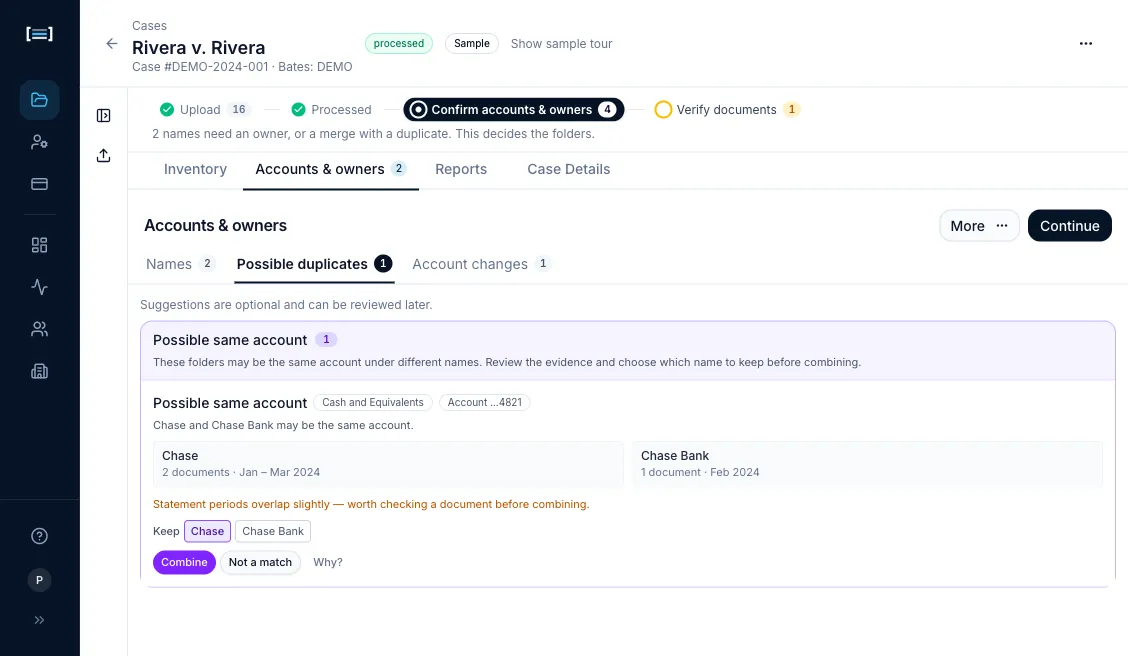
Two folders that hold the same account number under different names. Each row leads with the evidence:
- The category the accounts sit in, and the account number, as chips:
Cash and Equivalents,Account …4821. - One line saying what the row is claiming: “Chase and Chase Bank may be the same account.”
- Both names side by side, each with its document count and statement period, so you can see what is in each folder without opening it.
- A line telling you what those periods mean. “Statement periods do not overlap — that can mean one renamed account” is the encouraging case. “Statement periods overlap slightly — worth checking a document before combining” is highlighted, and is a request to look rather than a verdict against the merge: a cycle or two of overlap is what a rename looks like, and larger overlaps are filtered out before the row ever reaches you.
- Keep — the name that survives. It is pre-set, but you decide. On a store card the right keeper is often the issuing bank rather than the shop.
Then either Combine, which asks you to confirm and then folds the two folders into one, or Not a match, which dismisses the row for good. Why? opens the corroborating evidence: the folder labels and the filenames on each side, each one clickable.
Use Not a match more readily than you expect. These rows are suggested from the account number alone. Ordernize does not compare the institution names when proposing them. Two different banks can legitimately issue accounts ending in the same four digits. Neither period line decides it for you. Both ask you to confirm, and an overlap is a reason to open a statement, not a reason to dismiss on sight.
Possible duplicate name
Section titled “Possible duplicate name”Two spellings that look like one entity, with the reason Ordernize thinks so. These rows offer Combine and nothing else. There is no Not a match, because leaving the row alone is already the way to decline it, and neither spelling is wrong on its own.
Everything below is the manual route, for duplicates Ordernize did not suggest: business entities, property addresses, vehicles.
When you do it
Section titled “When you do it”Whenever you see the same thing twice in the name list. The fastest way to spot it: Inventory tab → look down the Institution column for near-identical spellings, or open More → All names in Accounts & owners and read the list.
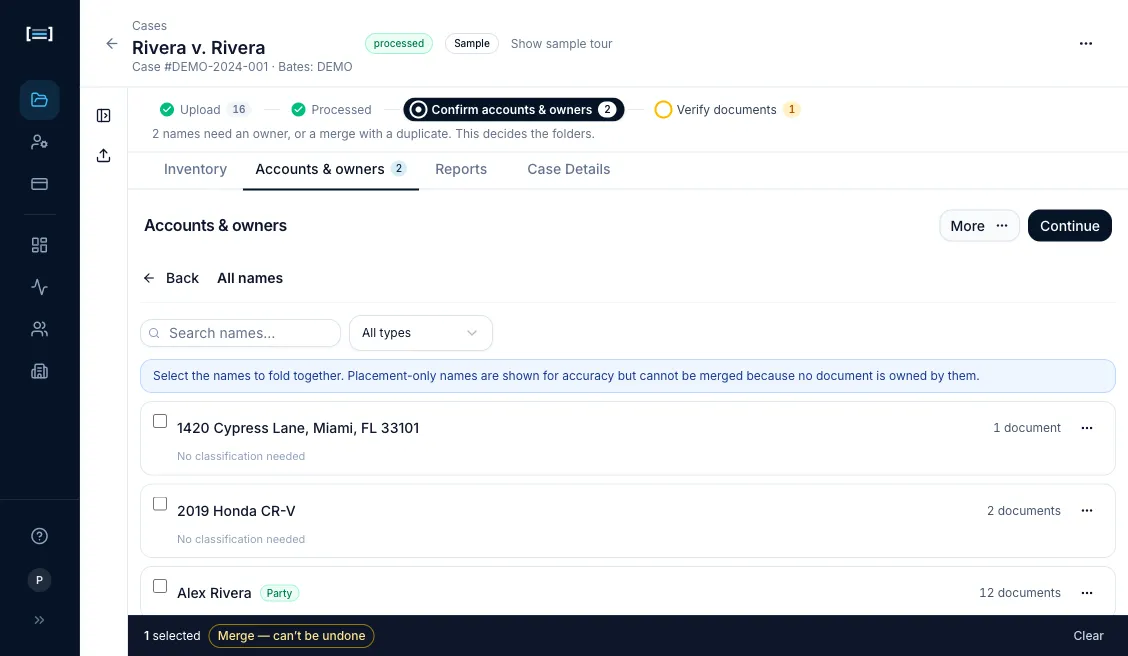
- Accounts & owners → More → Merge names manually. This opens All names with selection mode already on, so a checkbox appears on every row. All names is where institutions and properties live; they are never in the Names queue.
-
Tick the rows that are the same thing. Hold Shift to tick a run of rows at once. A dark tray appears at the bottom of the screen carrying the number you have selected, Merge — can’t be undone and Clear. If a search or filter is hiding something you ticked, the tray says how many and offers Show selected.
One tick is enough. You do not have to select both spellings — the survivor is chosen in the next dialog, and you can type a name that is not selected at all. That matters when the spelling you want to keep is hidden by the filter you are using.
-
Click Merge — can’t be undone. The Merge entities dialog opens. It lists what is folding in, with each name’s kind and document count.
-
Choose the survivor. Merge into is pre-filled with the spelling that has the most documents. That is a starting point, not a recommendation. Pick the spelling you want to see in the final report. You can also type a name that is not in the list at all, if neither spelling is right. The dialog repeats the warning: “Merging cannot be undone automatically.”
-
Click Merge. The folders rebuild. On a large case this takes a moment.
What good looks like
Section titled “What good looks like”- One row where there were two, carrying the combined document count.
- On the Inventory tab, one folder for that institution instead of two.
- The Institution column reads the same spelling on every one of that account’s statements.
Next: Account changes · Maintaining names